Research prototype accompanying Notational Animating: An Interactive Approach to Creating and Editing Animation Keyframes, CHI 2026.
Xinyu Shi, Li-Yi Wei, Nanxuan Zhao, Jian Zhao, and Rubaiat Habib Kazi.
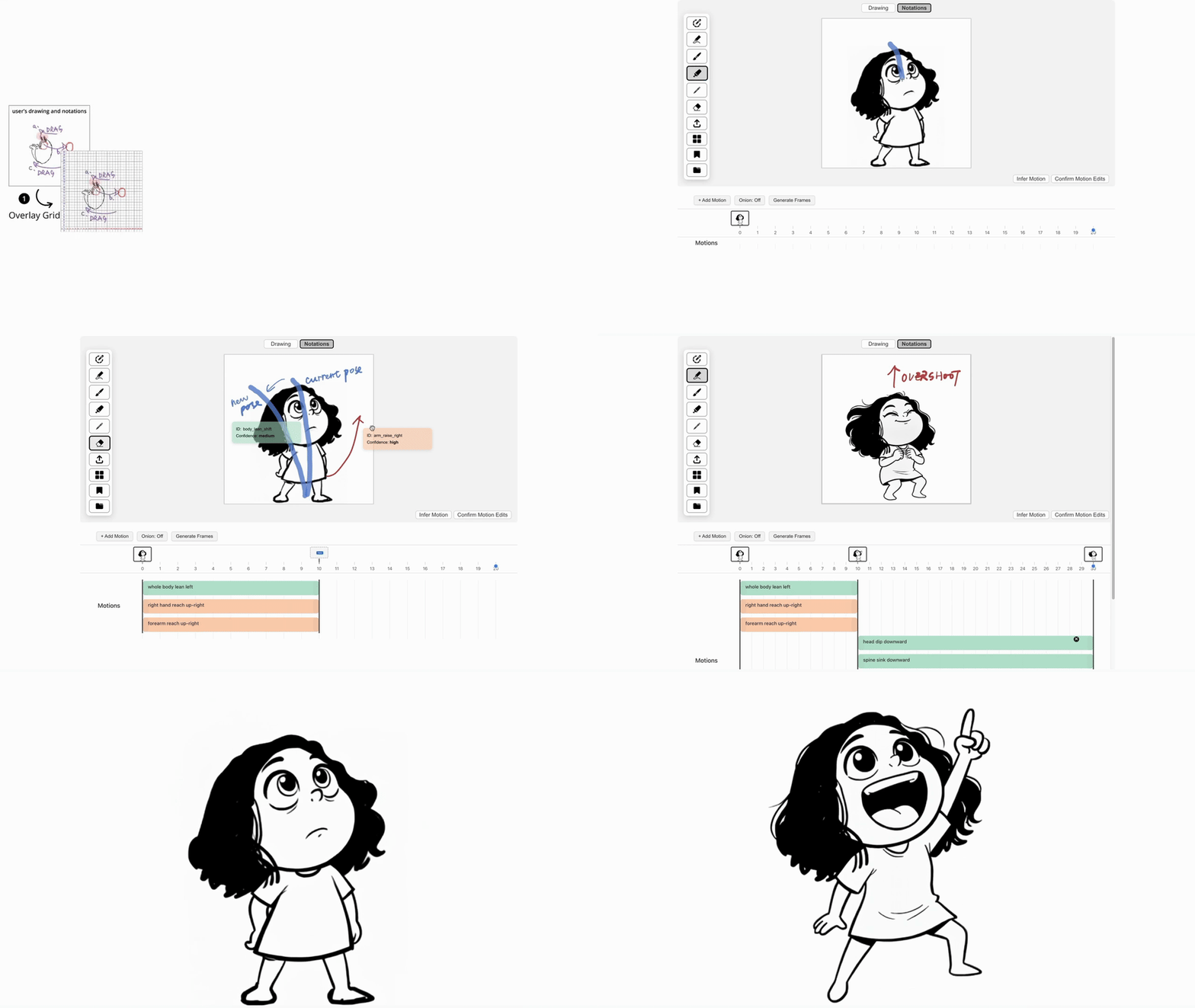
Draw motion notations over a static drawing, interpret them as source/path/target motion units, edit their parameters and timing, and generate animation keyframes. The interface includes drawing and notation layers, a motion timeline, keyframe previews, onion skinning, and history export.
Quick start | API setup | Workflow | Citation
- Node.js 22.12+ within Node 22, or Node 24+.
.nvmrcselects Node 22. - Python 3.12; other Python versions have not been tested.
- A modern desktop or tablet browser. Desktop Chrome and a tablet-sized Chromium viewport are covered by automated tests; physical iPad/Apple Pencil testing remains separate.
- A Google or OpenAI API key with access to the configured models for AI features. Optional Veo video requires Google credentials. No local GPU is needed.
- FFmpeg for optional video export.
imageio-ffmpegsupplies a binary on supported platforms; a system FFmpeg installation can also be used.
Commands below run from the repository root on macOS/Linux. Windows users can use WSL or substitute .venv\Scripts\python.exe for .venv/bin/python.
git clone https://github.com/Xinyu-Shi/Notational-Animating.git
cd Notational-Animating
nvm install
nvm use
npm ci
python3.12 -m venv .venv
.venv/bin/python -m pip install -r backend/requirements.lock
cp .env.example .env
cp backend/.env.example backend/.env
If a supported Node version is already installed, skip the nvm commands. requirements.lock pins the tested Python dependency set; requirements.txt lists direct dependencies. The cp commands are for a fresh setup: do not overwrite existing .env files containing your configuration.
Start the backend in one terminal:
.venv/bin/python backend/app_gemini.pyStart the frontend in another:
npm run devOpen http://localhost:5173. The frontend proxies API requests to http://127.0.0.1:5000. Check the backend independently with:
curl http://127.0.0.1:5000/healthThe app opens without an API key. To enable AI generation, configure one of the providers below.
| Feature | OpenAI | |
|---|---|---|
| Notation interpretation and timeline planning | Supported | Supported |
| Keyframe descriptions and image generation | Supported | Supported |
| Optional video interpolation | Not supported | Veo |
Open API Settings (or Set API Key), select OpenAI under AI provider, and enter an OpenAI API Key. This single key supports motion interpretation, timeline planning, keyframe descriptions, and image generation; no Gemini key is required for that workflow. Optional Veo video still requires a Gemini key. Credentials are kept separate and sent only to their respective providers. Clear Keys removes both browser keys.
Alternatively, set IMAGE_PROVIDER=openai and OPENAI_API_KEY in backend/.env, restart the backend, and leave the UI provider on Server default. Selecting a provider in the UI overrides the server default.
IMAGE_PROVIDER=openai
OPENAI_API_KEY=your_openai_api_key
OPENAI_TEXT_MODEL=gpt-5-mini
OPENAI_IMAGE_MODEL=gpt-image-2
These are placeholders, not working credentials. Leave TEXT_PROVIDER empty to use the same provider for planning and images.
OpenAI motion interpretation and planning use the Responses API with gpt-5-mini, configurable through OPENAI_TEXT_MODEL. Image generation uses the Images edit API with the current drawing as a reference. Intermediate-frame requests send both endpoint images. The default is gpt-image-2, configurable through OPENAI_IMAGE_MODEL; output is normalized to the editor's 512 x 512 PNG frames. A valid API key with access to both models and available quota is required.
Select Gemini under AI provider and enter a Gemini API Key. Alternatively, configure the backend and use Server default:
IMAGE_PROVIDER=gemini
GOOGLE_API_KEY=your_google_api_key
The configured Google project must have access to the text and image models configured in backend/.env. Veo access is needed only for optional video generation, including when OpenAI is selected for the rest of the workflow.
Browser-entered keys are stored in local storage, not just for the current session, and sent to the configured backend with relevant generation requests. Clear Keys removes both browser keys, but does not remove server environment credentials. Use only a backend you trust, and avoid saving keys in shared browsers.
AI requests send the relevant drawings, notations, prompts, or animation frames to the selected provider. Never commit .env files or keys, and never put credentials in a VITE_* variable: those values are bundled into public browser code. Local development requires no public deployment; see deployment notes before exposing the backend to other users.
- Choose a built-in example, upload an image, or sketch in Drawing.
- Switch to Notations and draw the intended movement over the artwork.
- Select Infer Motion. Review the interpreted notation controls and the resulting motion timeline.
- Adjust motion properties and timeline bars. Use Confirm Motion Edits after changing the notation interpretation.
- Select Generate Frames below the canvas. Click a keyframe thumbnail to inspect it or continue editing from that point.
- Save the frame series using the bookmark icon, open history, and select Export to download a ZIP. Generate Video in history is optional and makes additional paid Veo requests.
History is held in memory. Export work before refreshing or closing the tab. public/examples/ contains the built-in drawing examples; test_examples/ contains additional research inputs.
Select a keyframe, enable Onion, and choose previous frames from the onion menu to compare poses. Onion mode displays the artwork and selected previous frames with reduced opacity. User notation strokes and their editing overlays are hidden, not deleted; they return when onion mode is turned off. Confirm Motion Edits is disabled while onion mode is active.
Bibliographic details follow the paper project page.
@inproceedings{shi2026notational_animating,
  author = {Shi, Xinyu and Wei, Li-Yi and Zhao, Nanxuan and Zhao, Jian and Kazi, Rubaiat Habib},
  title = {Notational Animating: An Interactive Approach to Creating and Editing Animation Keyframes},
  year = {2026},
  publisher = {Association for Computing Machinery},
  address = {New York, NY, USA},
  url = {https://doi.org/10.1145/3772318.3790707},
  doi = {10.1145/3772318.3790707},
  booktitle = {Proceedings of the 2026 CHI Conference on Human Factors in Computing Systems},
  numpages = {29},
  location = {Barcelona, Spain},
  series = {CHI '26}
}